How to Extend Laptop Battery Life in 2026: Settings That Actually Help
Practical Windows 11 and macOS settings, charging habits, and a 15-minute checklist to improve laptop battery runtime and health.

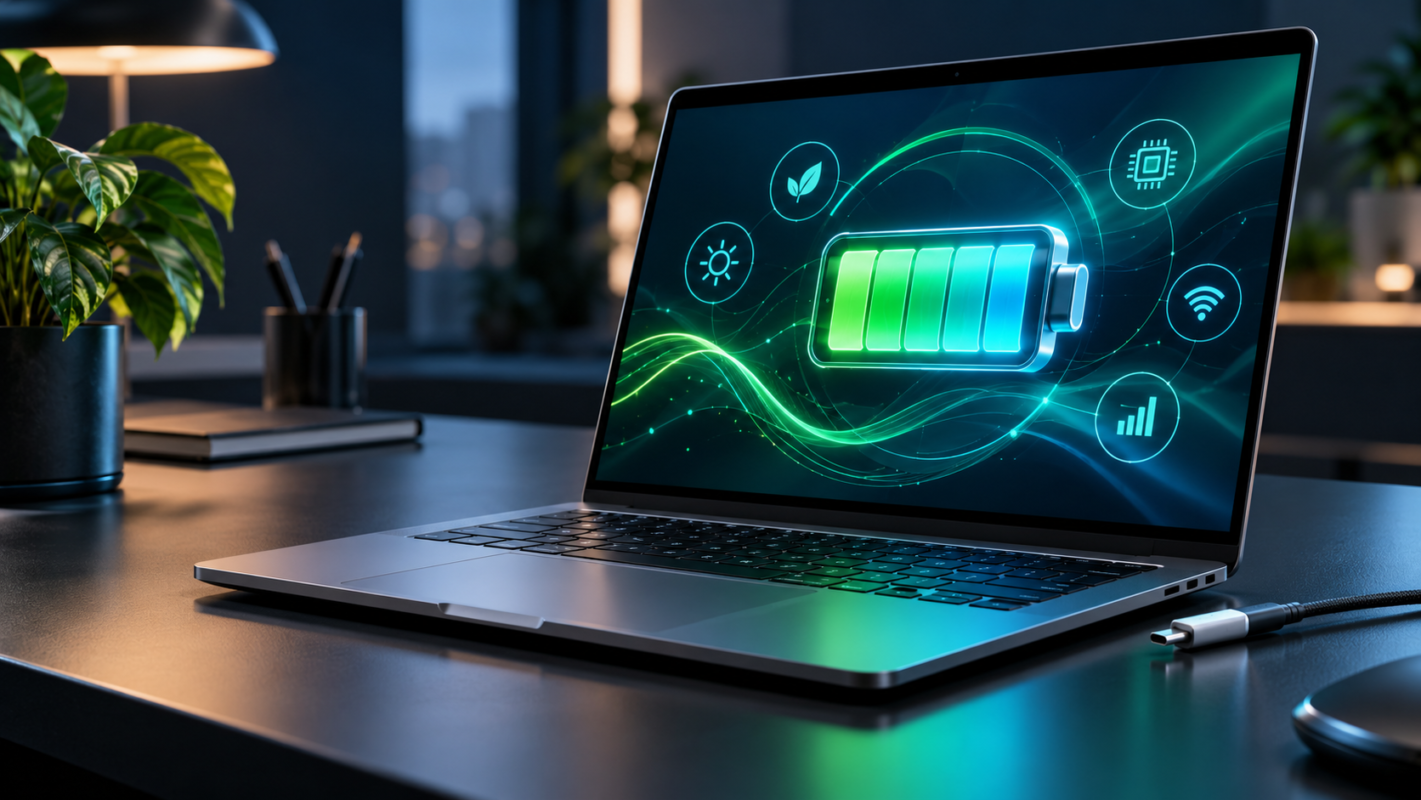
Laptop battery life depends on more than battery capacity. Screen brightness, background applications, power settings, charging habits, and demanding workloads can all affect how long a laptop runs away from a power outlet.
In October 2026, Windows 11 and macOS offer built-in tools that can reduce unnecessary energy consumption without making everyday work difficult. The important part is knowing which settings produce meaningful savings and which popular battery tips are outdated.
This guide explains how to extend laptop battery life on Windows laptops and MacBooks, protect long-term battery health, identify energy-hungry applications, and make practical improvements in about 15 minutes.
Quick Answer: How to Extend Laptop Battery Life
To extend laptop battery life, lower screen brightness, enable Windows 11 Energy Saver or macOS Low Power Mode, reduce unnecessary background activity, and shorten screen timeout settings. Use a supported charging limit to protect long-term battery health, avoid excessive heat, and check battery usage reports to identify demanding applications. These changes usually matter more than battery optimization utilities.
What Actually Uses the Most Laptop Battery?
A laptop consumes energy through its display, processor, graphics hardware, wireless connections, storage, and connected accessories. The contribution of each component changes depending on what you are doing.
For example, a video meeting uses the camera, microphone, network connection, display, and processor simultaneously. Editing complex graphics or rendering video can increase processor and graphics consumption considerably.
Reading documents and writing emails generally require less processing power, but a bright display can still consume substantial energy.
Common Battery Drains
- Display brightness: High brightness increases display power consumption, particularly when working outdoors.
- Processor workload: Compiling code, rendering videos, and intensive multitasking require additional energy.
- Background applications: Cloud synchronization, software updates, and unnecessary processes can consume power without visible activity.
- High refresh rates: Running a display at a fixed high refresh rate can use more energy than a lower or adaptive setting.
- External devices: USB accessories, external drives, and peripherals may draw power from the laptop.
- Wireless activity: Continuous transfers, weak connections, and network-intensive applications increase consumption.
Actual savings depend on the laptop hardware and workload. A setting that makes a noticeable difference during document editing might have little effect during a demanding video export.
Best Windows 11 Settings to Extend Battery Life
Windows 11 includes several useful power controls under Settings > System > Power & battery. These should be your first stop before installing additional utilities.
1. Enable Best Power Efficiency
Open Settings > System > Power & battery > Power mode, then select Best power efficiency where available.
This favors lower energy consumption over maximum performance. For browsing, writing, spreadsheets, and similar tasks, the performance difference may be modest.
Switch back to Balanced when you need more responsive performance for demanding creative or development work.
2. Configure Energy Saver
Under Power & battery, open Energy saver and choose when it activates automatically. A threshold around 30% is a practical starting point.
Enable the option to lower brightness while Energy Saver is active. You can also turn Energy Saver on manually before a long meeting or journey.
Current fact: Microsoft’s Windows 11 power settings documentation confirms that Energy Saver reduces background activity and can dim the screen to conserve energy.
3. Reduce Screen Brightness and Idle Time
Start with a comfortable brightness level instead of leaving your display at maximum. Around 40% to 60% may work indoors, depending on ambient lighting and display characteristics.
Under Screen, sleep & hibernate timeouts, consider turning the display off after three minutes of inactivity and putting the laptop to sleep after ten minutes on battery.
These are suggested starting points, not mandatory values. Adjust them for presentations, reading, and other activities.
4. Use Dynamic Refresh Rate Where Supported
Open Settings > System > Display > Advanced display. If Dynamic refresh rate is available, enable it to let Windows adjust refresh behavior according to activity.
On laptops without this feature, selecting 60Hz instead of a higher fixed refresh rate may reduce display power use.
Not every laptop supports dynamic refresh rates, and the benefit varies with display technology.
Best macOS Settings for MacBook Battery Life
Modern MacBooks already manage power efficiently, especially models using Apple silicon. However, macOS provides additional controls that can help during longer unplugged sessions.
1. Enable Low Power Mode
Open Apple menu > System Settings > Battery. Find Low Power Mode or Energy Mode, depending on the Mac and macOS configuration.
Select the lower-power setting for battery operation. This reduces energy demands but can also limit performance during sustained workloads.
For everyday browsing, writing, and light design work, this trade-off may be worthwhile. For rendering or compiling large projects, Automatic mode may be more appropriate.
2. Optimize Display Settings
Reduce display brightness through Control Center or the keyboard brightness controls. If available, enable the option to slightly dim the display on battery power.
Under System Settings > Lock Screen, configure a shorter display-off interval while on battery.
On MacBooks with ProMotion, consider switching from adaptive refresh behavior to a lower fixed refresh rate when maximum battery endurance matters more than smooth scrolling.
3. Use Activity Monitor to Find Energy-Hungry Apps
Open Activity Monitor and select the Energy tab. Review Energy Impact and average energy consumption to identify applications placing continuous demands on the system.
Close applications you no longer need, pause unnecessary cloud transfers, and investigate processes that remain active unexpectedly.
A browser with multiple video streams, a constantly syncing utility, or an active development server may consume more energy than several idle applications combined.
Current fact: Apple’s Mac Battery settings documentation identifies Low Power Mode, Optimized Battery Charging, battery health information, and energy usage history as available controls, subject to hardware compatibility.
Windows 11 vs macOS: Battery Settings Comparison
| Battery Setting | Windows 11 | macOS | Practical Benefit |
|---|---|---|---|
| Power-saving mode | Best power efficiency and Energy Saver | Low Power Mode | Reduces power consumption during ordinary tasks |
| Screen brightness | Display settings and Quick Settings | Displays settings and Control Center | Reduces display energy use |
| Background activity | Battery usage and supported app permissions | Activity Monitor and individual app settings | Identifies unnecessary workload |
| Sleep controls | Power & battery settings | Lock Screen settings | Reduces idle power consumption |
| Charging limits | Usually manufacturer utilities or firmware | Built-in on supported Apple silicon Macs | Helps reduce long-term battery aging |
| Energy monitoring | Battery usage and battery reports | Battery history and Activity Monitor | Helps diagnose unexpected drain |
Neither operating system guarantees superior battery life in every situation. Hardware efficiency, battery capacity, screen technology, software behavior, and workload all influence results.
If you are choosing a replacement computer, our best AI laptop guide explores current laptop options and the specifications worth comparing.
Control Background Apps Without Breaking Your Workflow
Background applications are worth investigating because they can consume resources while appearing inactive.
On Windows 11, open Settings > System > Power & battery > Battery usage. Review applications with unusually high consumption.
For supported applications, use Manage background activity to select Power optimized or Never. Some traditional desktop programs manage their background processes separately and will not expose these controls.
Also review Task Manager > Startup apps. Disable unnecessary programs that launch automatically, but keep security software, required synchronization services, and important system utilities enabled.
On macOS, use Activity Monitor alongside System Settings > General > Login Items & Extensions to inspect startup and background activity.
Avoid force-quitting unfamiliar system processes. Instead, investigate persistent high consumption and confirm that the associated application is unnecessary.
Modern processors can also handle certain AI workloads using dedicated hardware. Our explanation of what is an NPU in an AI PC covers how specialized processing can affect laptop efficiency.
Battery Health: Charging Habits That Actually Matter
Battery runtime and battery health are different concepts. Runtime describes how long a charge lasts today. Battery health describes how much capacity remains as the battery ages.
Modern lithium-ion batteries gradually lose capacity through time, temperature exposure, charging conditions, and usage cycles.
Use Charge Limits When Appropriate
If your laptop stays connected to power most of the day, a charging limit can reduce the time its battery spends near full charge.
Many Windows laptop manufacturers provide charging thresholds through their own management applications or firmware. Availability depends on the model.
Current fact: Apple introduced a configurable Charge Limit for supported Apple silicon Macs running macOS Tahoe 26.4 or later, with settings from 80% to 100%.
On compatible MacBooks, open System Settings > Battery and select the information control next to Charging. Choose an appropriate limit.
For older Macs, Optimized Battery Charging can delay charging beyond 80% based on predicted usage patterns. It is not the same as a fixed charging cap.
Avoid Excessive Heat
Heat contributes to battery degradation. Avoid leaving laptops in hot vehicles, blocking ventilation, or running demanding workloads on soft surfaces that restrict airflow.
Keep vents clear and use a stable surface when charging during intensive work.
You do not need to unplug the charger repeatedly throughout the day. Modern charging systems manage charging automatically.
For users who routinely need maximum unplugged runtime, charging to 100% before leaving is reasonable. A charging limit is a long-term preservation choice, not a requirement.
Battery Myths You Can Ignore in 2026
Myth: Always Drain the Battery to Zero
Regular full discharges are unnecessary for lithium-ion batteries. Frequent deep discharging can add avoidable battery stress.
Occasional complete charge cycles may help certain battery gauges maintain accurate estimates, but they do not restore lost chemical capacity.
Myth: Dark Mode Always Saves Significant Battery
Dark interfaces can reduce display power consumption on OLED screens because darker pixels require less energy.
On conventional LCD displays, the benefit is generally much smaller. Brightness reduction is usually a more reliable adjustment.
Myth: Every Browser Tab Drains the Battery Equally
An inactive document tab and an active video stream have very different energy requirements.
Focus on tabs running video, animations, live dashboards, or resource-intensive scripts rather than closing every tab indiscriminately.
Myth: Disabling Wi-Fi Always Produces Major Savings
Turning off wireless connectivity can help when it is genuinely unnecessary, but normal Wi-Fi connectivity is not automatically a major source of battery drain.
Continuous downloading, uploading, video calling, and weak network conditions matter more. Newer wireless standards do not guarantee lower energy use in every situation.
Our Wi-Fi 7 explained guide covers what the latest wireless capabilities mean for everyday devices.
The 15-Minute Laptop Battery Optimization Checklist
Use this checklist to make meaningful adjustments without spending hours experimenting. The time allocation is approximate and assumes you already know your operating system settings.
- Minutes 0 to 2: Lower display brightness to a comfortable level and disable unnecessary maximum-brightness settings.
- Minutes 2 to 4: Enable Windows Best power efficiency or macOS Low Power Mode for battery operation.
- Minutes 4 to 6: Configure screen-off and sleep intervals to prevent unnecessary idle consumption.
- Minutes 6 to 9: Review Windows Battery usage or macOS Activity Monitor. Identify unusually demanding applications and close unnecessary workloads.
- Minutes 9 to 11: Review startup applications, background synchronization, and browser tabs running demanding content.
- Minutes 11 to 13: Check battery health and enable supported optimized charging or charging limits where appropriate.
- Minutes 13 to 15: Disconnect unused powered accessories, check ventilation, and record your current battery runtime for comparison.
Test the laptop under a similar workload over the following few days. Consistent conditions make comparisons more meaningful than relying on a single battery percentage reading.
How to Tell Whether Your Battery Needs Replacement
Software settings cannot fully compensate for a heavily degraded battery.
On Windows 11, open Terminal or Command Prompt and run powercfg /batteryreport. Windows generates a report containing design capacity, full charge capacity, and usage information.
On macOS, open System Settings > Battery to review battery condition and available health information. You can also inspect battery cycle details in System Information.
Compare current full charge capacity with the original rated capacity. A substantially reduced capacity suggests the battery cannot store as much energy as it once did.
Replacement becomes worth considering when runtime no longer meets your needs, the operating system recommends service, or the battery shows physical problems.
If a battery appears swollen, stop using or charging the laptop and arrange professional service. Do not attempt to puncture, compress, or manipulate it.
Frequently Asked Questions
1. What is the fastest way to improve laptop battery life?
Start by lowering display brightness and enabling your operating system’s power-saving mode. Then inspect background applications and reduce unnecessary screen-on time. These changes require little effort and directly address common sources of energy consumption. The improvement depends on your workload, hardware, and current settings, so measure runtime before and after adjusting them.
2. Is it better to charge a laptop to 80% or 100%?
An 80% charging limit can help reduce long-term battery aging when a laptop spends much of its time connected to power. However, charging to 100% provides more immediate runtime when traveling or working away from outlets. Choose a limit according to your routine rather than treating 80% as a universal requirement.
3. Does Windows 11 Energy Saver slow down a laptop?
Energy Saver can limit some activity and reduce responsiveness during demanding workloads, but basic browsing, email, and document editing may remain comfortable. If performance becomes noticeably worse, switch to Balanced mode while completing intensive work. Energy Saver is most useful when extending unplugged operation matters more than maximum processing speed.
4. Does keeping a MacBook plugged in damage its battery?
Keeping a MacBook connected to power does not automatically damage its battery. Modern MacBooks manage charging internally, while Optimized Battery Charging and supported charge limits help reduce prolonged high charge levels. Excessive heat remains an important concern. For mostly desk-based use, enable available battery preservation features rather than constantly disconnecting the charger.
5. Why does my laptop battery drain quickly even when idle?
Possible causes include background updates, cloud synchronization, startup applications, connected accessories, poor sleep behavior, and reduced battery capacity. Check Windows Battery usage or macOS Activity Monitor for unusual activity. If the battery also loses substantial charge while sleeping, investigate wake events, connected devices, and whether the laptop is entering the intended sleep state.
Conclusion: Better Settings, More Useful Battery Life
Learning how to extend laptop battery life does not require complicated utilities or extreme charging routines. Start with display brightness, built-in power-saving modes, shorter idle intervals, and sensible background app management. These changes target the energy your laptop consumes during everyday use.
For long-term battery health, avoid excessive heat and use optimized charging or supported charge limits when they fit your routine. Remember that preserving battery lifespan and maximizing runtime on a single charge are different goals.
Finally, measure your results under realistic conditions. If runtime remains poor despite sensible settings, check battery capacity and condition before assuming another software adjustment will solve the problem.