What Is a NAS Home Server in 2026? Storage, Backups and Media
Learn how NAS home servers work in 2026, including RAID, popular models, Plex, Jellyfin, Immich, backups, security, and costs.

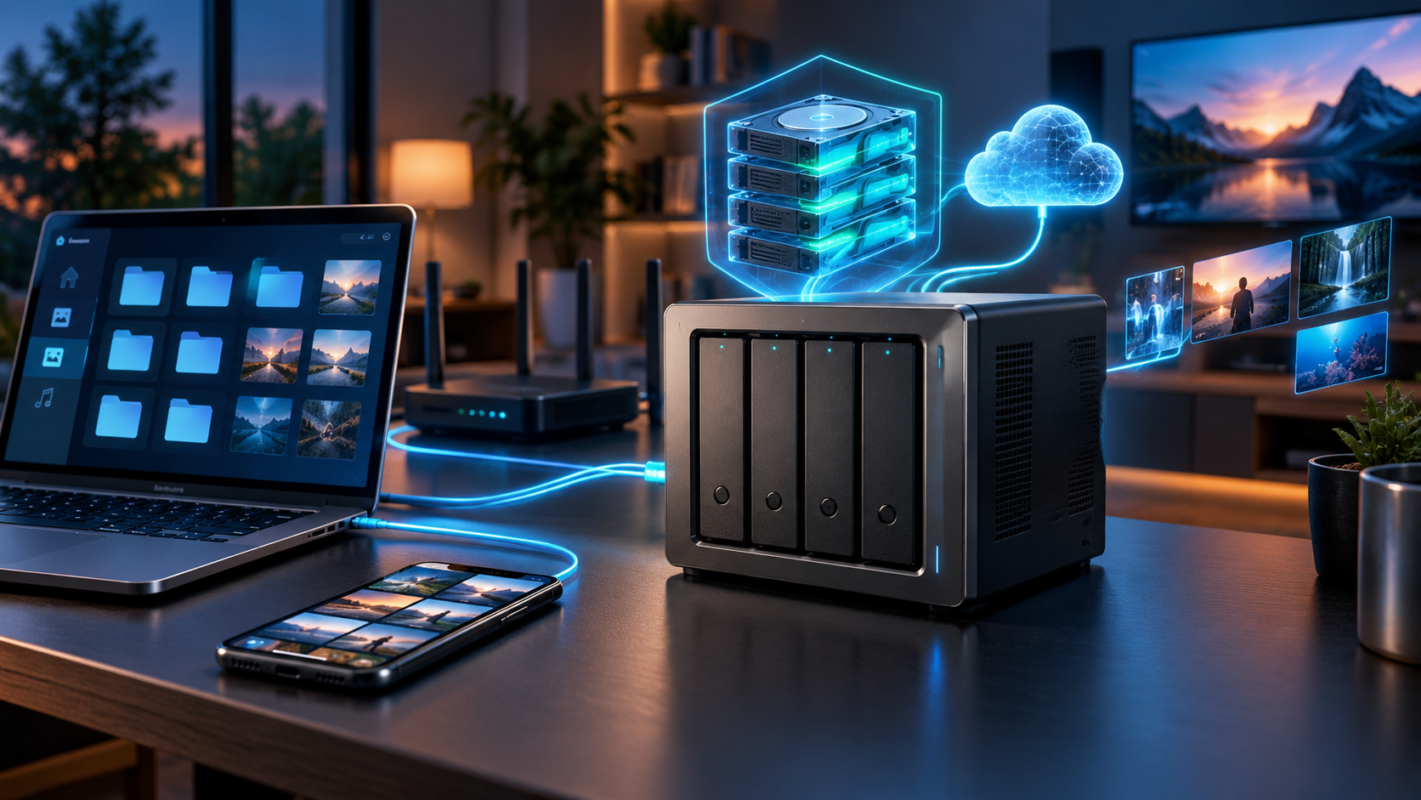
A NAS home server gives you a central place to store files, back up computers, organize family photos, and stream movies without relying entirely on cloud subscriptions. Instead of connecting an external hard drive to one computer, you connect a dedicated storage device to your home network so multiple devices can access it. In 2026, NAS systems from Synology, QNAP, UGREEN, and TerraMaster also support applications, automated backups, and private media libraries.
Quick Answer: What Is a NAS Home Server?
A NAS (Network Attached Storage) home server is a small computer with one or more storage drives that connects to your router and shares files across your network. It can automatically back up laptops and phones, stream movies through Plex or Jellyfin, and manage photos with Immich. Unlike basic external storage, a NAS runs independently and remains accessible whenever it is powered on.
How Does a NAS Home Server Work?
A NAS contains a processor, memory, an operating system, network ports, and bays for hard drives or SSDs. It normally connects to your router using an Ethernet cable, while laptops, smartphones, televisions, and tablets access its storage over Wi-Fi or wired connections.
For example, you could save a 20GB video project from your Windows PC, open it on your MacBook, and play exported videos on your television. The files remain on the NAS rather than requiring separate copies on every device.
NAS Hardware and Network Speed
Most home NAS devices offer two or four drive bays. Two-bay systems suit smaller households, while four-bay systems provide additional storage expansion and RAID options.
A 1GbE Ethernet connection provides a theoretical maximum of 125MB/s before protocol overhead. A 2.5GbE connection increases that to 312.5MB/s, although real performance depends on the drives, switches, network adapters, and workload.
For photographers or video editors transferring large projects, 2.5GbE networking is worth considering. If you also work with high-speed external SSDs, our guide to USB-C vs Thunderbolt 5 explains where local direct-attached storage still has a performance advantage.
NAS Operating Systems
A NAS operating system manages storage, permissions, applications, and backups through a browser interface. Synology uses DiskStation Manager (DSM), QNAP offers QTS and QuTS hero on supported hardware, UGREEN uses UGOS Pro, and TerraMaster uses TOS.
Advanced users can also build a NAS using TrueNAS or Unraid. These offer greater hardware flexibility but usually require more setup and maintenance than a ready-made appliance.
RAID Explained: RAID 0, RAID 1, RAID 5 and RAID 6
RAID combines multiple drives into a storage arrangement that can prioritize capacity, performance, or protection against drive failure. Understanding RAID matters because buying two 8TB drives does not necessarily provide 16TB of usable, protected storage.
Common RAID Levels for Home Use
| RAID Level | Minimum Drives | Example Usable Capacity | Drive Failure Tolerance |
|---|---|---|---|
| RAID 0 | 2 | 2 × 8TB = 16TB | None |
| RAID 1 | 2 | 2 × 8TB = 8TB | One drive |
| RAID 5 | 3 | 4 × 8TB = 24TB | One drive |
| RAID 6 | 4 | 4 × 8TB = 16TB | Two drives |
These examples assume identical drive capacities and show approximate decimal storage before formatting, filesystem overhead, and reserved space.
RAID 0 combines capacity and can improve throughput, but failure of either drive can destroy the entire array. It is unsuitable for important files without separate backups.
RAID 1 mirrors the same data across two drives. It is a practical starting point for a two-bay home NAS.
RAID 5 distributes data and parity across at least three drives. It provides better usable capacity than mirroring every drive, but rebuilding after a failure can take considerable time.
RAID 6 reserves additional parity capacity to survive two drive failures. This can be useful for larger arrays where resilience matters more than maximum space.
Synology Hybrid RAID (SHR) simplifies capacity management and may support more flexible expansion with mixed drive sizes. Traditional RAID layouts generally benefit from matching drives.
Important: RAID is not a backup. It cannot reliably protect against accidental deletion, ransomware, theft, fire, or filesystem corruption.
Best 2-Bay and 4-Bay NAS Home Servers in 2026
The right NAS depends on your intended applications, available budget, storage requirements, and comfort with managing software. A simple backup appliance has different requirements from a server running multiple Docker containers.
Popular NAS Models Compared
| NAS Model | Bays | Networking | Best For |
|---|---|---|---|
| Synology DS225+ | 2 | 1GbE + 2.5GbE | Simple backups and file sharing |
| QNAP TS-264 | 2 | Dual 2.5GbE | Media and applications |
| TerraMaster F2-425 | 2 | 2.5GbE | Home media storage |
| UGREEN NASync DXP2800 | 2 | 2.5GbE | Flexible home applications |
| Synology DS425+ | 4 | 1GbE + 2.5GbE | Expandable family storage |
| QNAP TS-464 | 4 | Dual 2.5GbE | Media and container workloads |
| UGREEN NASync DXP4800 Plus | 4 | 10GbE | High-speed creative workflows |
According to Synology’s published specifications, the DS225+ and DS425+ use Intel Celeron J4125 processors with 2GB of included DDR4 memory. Their relatively modest hardware emphasizes managed storage and backup applications over heavy virtualization.
QNAP specifies an Intel Celeron N5095 and two 2.5GbE ports for the TS-264. Its integrated graphics support hardware-accelerated video transcoding, which makes it relevant for compatible media-server workloads.
UGREEN’s NASync models emphasize relatively powerful hardware, while TerraMaster offers another route into general-purpose NAS storage. Compare operating-system maturity, application compatibility, support policies, and drive restrictions before buying.
Also check Synology’s current supported-drive lists. Compatibility requirements can differ by model, firmware, and drive type. Popular NAS-oriented drives include Seagate IronWolf and Western Digital Red Plus, but a familiar product name alone does not guarantee compatibility.
Using a NAS as a Plex or Jellyfin Media Server
A home NAS can organize personally owned movies, television recordings, and music into a library accessible through televisions, streaming boxes, computers, and mobile devices.
Plex vs Jellyfin
Plex offers a polished interface, metadata management, client applications, and remote streaming features. Some advanced capabilities, including certain hardware-transcoding features, require the appropriate Plex subscription or pass.
Jellyfin is free and open source, with no required subscription for its core media-server capabilities. Jellyfin 12.0 was released in September 2026, according to the project’s release announcement, bringing further performance improvements and expanded media support.
For local playback, either application can work well. The main technical consideration is whether the playback device supports your video’s original format.
Direct Play sends compatible media without converting it. Transcoding converts video or audio for unsupported devices and can demand substantially more processor resources, especially with high-resolution 4K content.
A NAS with compatible Intel integrated graphics is often a sensible choice if you expect transcoding. However, actual hardware acceleration depends on the application, operating system, codec, and licensing.
Backing Up Photos Automatically With Immich
Immich is a self-hosted photo and video management application that provides automatic mobile uploads, chronological browsing, albums, maps, and face recognition. It is particularly useful for families looking for more control over their photo libraries.
Immich’s October 2026 release notes identify version 3.3.0, which introduced improvements including people sharing and birthday memories. The project has evolved substantially beyond its early experimental releases.
Setting Up Immich on a NAS
- Choose a NAS capable of running supported containers, with sufficient RAM for Immich and its database.
- Install Immich using its supported Docker Compose deployment instructions.
- Configure persistent storage for uploaded files, the database, and application configuration.
- Install the Immich mobile app and enable photo backup.
- Verify uploads, configure user accounts, and back up both the photo files and database.
For example, a household with three smartphones could upload family photos automatically to one NAS library instead of transferring images manually every month.
Immich can perform machine-learning tasks locally, although hardware requirements vary. If you are comparing hardware for these workloads, our explanation of what is an NPU AI PC covers dedicated AI accelerators and how they differ from ordinary CPUs and GPUs.
Remember that photo synchronization alone is not a complete backup system. Deleted or corrupted files may still require recovery from an independent backup.
The 3-2-1 Backup Rule for NAS Owners
A reliable home storage setup should follow the 3-2-1 backup principle: keep three copies of important data, across two different storage media or systems, with at least one copy off-site.
Backblaze’s backup guidance describes this approach as protection against individual device failures and location-wide incidents. Its 3-2-1 backup explanation provides additional background.
A Practical Home Backup Example
- Copy 1: Original documents on your laptop or primary NAS storage.
- Copy 2: An automated local backup on another storage device, preferably with version history.
- Copy 3: An encrypted off-site backup using cloud storage or a drive kept at another location.
Synology Hyper Backup, restic, and compatible backup applications can automate parts of this process. Backblaze B2 is one possible off-site destination.
Enable snapshots where supported, maintain backup versions, and test restoring a few files every month. A backup is only useful when its data can actually be recovered.
NAS vs Cloud Storage: Three-Year Cost Comparison
Buying a NAS involves upfront hardware costs, while cloud storage usually charges recurring fees. However, NAS ownership also includes electricity, drive replacement risk, maintenance, and potentially off-site backup subscriptions.
Consider an illustrative two-bay NAS setup with two 4TB hard drives configured as RAID 1, providing approximately 4TB of raw usable capacity before formatting.
| Cost Item | Example Cost |
|---|---|
| Two-bay NAS enclosure | $300 |
| Two 4TB NAS drives | $200 |
| Electricity for 3 years | $79 |
| Total NAS ownership estimate | $579 |
| 2TB cloud plan at $9.99/month for 36 months | $359.64 |
These NAS figures are illustrative purchasing assumptions, not verified October 2026 retail quotations. Electricity assumes continuous 15W average consumption at $0.20/kWh. The cloud calculation uses Google’s advertised US 2TB Google One monthly rate as a reference, assuming unchanged pricing.
The capacities are not equivalent: the example NAS offers roughly 4TB of local usable storage, while the subscription provides 2TB online. The NAS estimate also excludes an independent backup, internet equipment, and replacement hardware.
Backblaze currently lists B2 storage starting at $6.95 per TB per month, making an off-site backup an additional recurring expense if you choose that service.
A NAS becomes more attractive when you need several terabytes, serve multiple household devices, or run local applications. Cloud storage remains simpler for smaller datasets, easy sharing, and maintenance-free access.
How to Secure Remote NAS Access
A NAS connected to the internet needs careful configuration. Avoid exposing administrator dashboards or SMB file-sharing ports directly through router port forwarding.
Use a trusted VPN solution such as Tailscale or WireGuard for remote access, enable multifactor authentication where available, and keep the NAS operating system and installed applications updated.
Create separate user accounts, disable unnecessary services, apply least-privilege permissions, and enable security notifications. Disable UPnP where it could create unwanted automatic port mappings.
Remote performance depends heavily on your home’s upload speed and network reliability. If your connection depends on rural broadband, our guide to satellite internet explains relevant connectivity considerations.
Frequently Asked Questions
Is a NAS home server worth it in 2026?
A NAS is worth considering if you have several computers, large photo collections, or media files exceeding basic cloud-storage allowances. It provides centralized storage, automatic backups, and local application hosting. However, people storing only a few hundred gigabytes may find cloud subscriptions or external SSDs cheaper and easier to maintain.
Can I use a NAS without an internet connection?
Yes. A NAS can share files, play local media, and perform network backups without an active internet connection, provided your local network continues working. Internet access is normally needed for remote connections, downloading updates, some authentication workflows, and cloud backup services. A functioning router and local Ethernet or Wi-Fi network are sufficient for many basic tasks.
How much RAM does a home NAS need?
For basic file sharing and scheduled backups, 2GB to 4GB can be sufficient, depending on the operating system. Running Docker applications, Immich, databases, or multiple services makes 8GB or more desirable. Virtual machines and larger workloads may require 16GB or additional memory. Always check the manufacturer’s supported upgrade limits.
Can I use regular desktop hard drives in a NAS?
Some desktop hard drives will function in a NAS, but purpose-built NAS drives are generally a better choice for continuous operation and multi-drive environments. Seagate IronWolf and WD Red Plus are common examples. Select compatible CMR-based drives where appropriate, check vibration and workload specifications, and confirm your NAS manufacturer’s compatibility requirements.
Does a NAS replace Google Drive or iCloud?
A NAS can replace some cloud-storage functions, including local file synchronization, shared folders, photo libraries, and automated device backups. It does not automatically provide the same off-site protection or effortless remote availability. Many households benefit from combining a NAS for primary storage with selective cloud backups for essential documents and irreplaceable photos.
Conclusion: Should You Buy a NAS Home Server?
A NAS home server in 2026 is more than a box containing hard drives. It can become the central storage system for family photos, computer backups, project files, and a private media library. Modern platforms from Synology, QNAP, UGREEN, and TerraMaster make these capabilities accessible without building a server from scratch.
Start with a two-bay NAS if your main needs are file sharing and backups. Consider four bays for greater expansion flexibility and additional RAID options. Most importantly, plan your independent backups before moving irreplaceable files. The best NAS is one that fits your storage needs and remains simple enough for you to maintain securely.