How to Spot a Phishing Email in 2026: 9 Red Flags
Learn 9 warning signs of phishing emails in 2026, including AI scams, fake links, suspicious attachments, and deepfake impersonation.

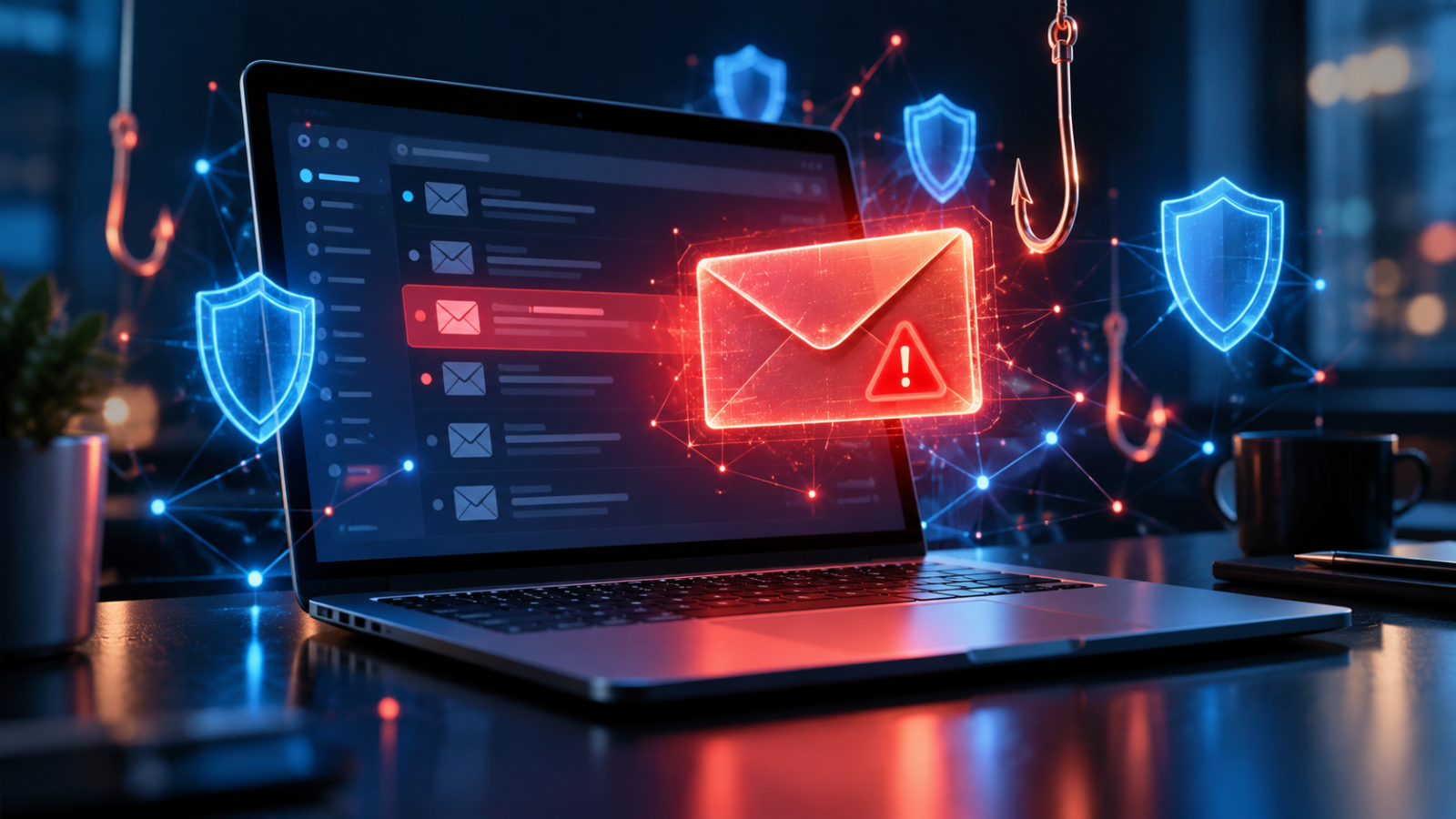
Phishing emails in 2026 are harder to recognize than the obvious scams of the past. Attackers now use AI-generated messages, convincing brand impersonation, stolen email accounts, and even deepfake audio to trick people into revealing passwords, transferring money, or installing malware. A suspicious message might look exactly like a Microsoft 365 security alert, a Google Drive invitation, or an invoice from a familiar supplier.
Fortunately, learning how to spot a phishing email does not require advanced technical knowledge. The most reliable approach is to examine who sent the message, what action it requests, and whether you can independently verify the claim. These nine warning signs will help you recognize modern phishing attempts before they compromise your accounts or finances.
Quick Answer: To spot a phishing email, check the sender’s actual address, inspect links before opening them, question unexpected attachments, and watch for urgent requests involving passwords, payments, or verification codes. Be cautious even when messages contain perfect grammar or familiar branding. In 2026, AI makes scams more convincing, so always verify sensitive requests through a trusted, separate communication channel.
What Is a Phishing Email, and Why Is It Still Dangerous in 2026?
A phishing email is a fraudulent message designed to persuade you to disclose sensitive information, visit a malicious website, download harmful software, or perform an unauthorized action. Attackers commonly impersonate banks, delivery companies, employers, government agencies, and technology providers.
Phishing is a form of social engineering. Instead of directly breaking through technical defenses, criminals manipulate people into making decisions that bypass those defenses.
The scale remains significant. According to the FBI’s 2025 Internet Crime Report, published in April 2026, phishing and spoofing generated 191,561 reported complaints in the United States. The FBI also recorded more than one million internet crime complaints overall, with reported losses approaching $21 billion across all categories.
Verizon’s 2026 Data Breach Investigations Report found that approximately 31% of breaches began with vulnerability exploitation. This matters because phishing is only one part of a wider attack chain. Criminals can combine stolen credentials, software weaknesses, and social manipulation to compromise organizations.
Understanding cybersecurity basics helps you recognize how these attacks connect to password theft, account takeover, malware infections, and financial fraud.
9 Red Flags That Help You Spot a Phishing Email
1. The Sender’s Email Address Does Not Match the Organization
One of the strongest warning signs is a mismatch between the displayed sender name and the actual email address. Attackers can make an email appear to come from a recognizable organization while using an unrelated domain.
For example, a message might display “Microsoft Security Team” as its sender but originate from an address such as [email protected]. The zero replacing the letter “o” is a common example of lookalike character manipulation.
Other attackers use ordinary Gmail or Outlook accounts while pretending to represent corporate support teams.
What to check: Open the full sender details, inspect the domain after the @ symbol, and compare it with the organization’s established domain. Remember that even a legitimate address is not conclusive proof because attackers sometimes compromise real accounts.
2. The Message Creates Artificial Urgency
Phishing messages often pressure recipients to act before they can investigate. The attacker might threaten account suspension, a financial penalty, or immediate loss of access.
Common examples include:
- “Your Microsoft 365 account will be disabled within 30 minutes.”
- “Unusual activity detected. Verify your identity immediately.”
- “Your package will be returned unless you pay a delivery fee.”
- “An urgent wire transfer must be completed before today’s deadline.”
Legitimate companies sometimes send urgent alerts, so urgency alone does not prove fraud. The danger appears when urgency is combined with suspicious links, unexpected payment instructions, or demands for confidential information.
What to do: Ignore the deadline until you verify the claim. Open the organization’s application or website independently instead of using the message’s action button.
3. Links Lead to Unexpected or Misleading Websites
A phishing link may appear to point toward a trusted service while actually opening an attacker-controlled website. The visible text and the destination can be completely different.
Imagine receiving an email with a button labeled “View Google Drive Document.” Instead of opening Google Drive, it directs you to a fraudulent sign-in page designed to capture your Google credentials.
Attackers also use redirects, shortened URLs, QR codes, and deceptive subdomains. An address such as accounts.google.com.example.net belongs to example.net, not Google.
What to check: On a desktop, hover over a link to preview its destination without clicking. On mobile, use the platform’s link-preview feature cautiously. If the address looks unfamiliar or confusing, navigate directly to the official service.
Also remember that HTTPS and a padlock only indicate an encrypted connection. They do not establish that a website is trustworthy.
4. Unexpected Attachments Ask You to Open or Enable Something
Attachments remain an important delivery method for malicious software. Criminals disguise files as invoices, resumes, shipping documents, contracts, and shared reports.
Common suspicious formats include executable files, password-protected archives, unexpected HTML attachments, and Microsoft Office documents that request macros or other active content.
A message might claim that an overdue invoice is attached and ask you to enable editing or bypass Microsoft Defender warnings to view it.
Modern Microsoft 365 protections block many dangerous macro scenarios by default, but attackers continue experimenting with alternative file types and workflows.
What to do: Verify unexpected attachments with the sender through a known channel. Never disable security protections simply because a document instructs you to do so. For shared files, open OneDrive, Google Drive, or your company platform directly.
5. The Email Requests Passwords, MFA Codes, or Sensitive Details
A major warning sign is a request to submit a password, one-time verification code, recovery phrase, or other confidential information through an email-linked form.
For example, an attacker might imitate a Google account security notification and direct you to a convincing login page. Another scam might ask you to provide a six-digit Microsoft Authenticator code to “confirm account ownership.”
Some phishing campaigns use adversary-in-the-middle techniques. These can relay a victim’s login session through an attacker-controlled service and potentially steal session cookies, even when certain forms of multifactor authentication are enabled.
What to do: Never share authentication codes with another person. Prefer passkeys or FIDO2 security keys where supported because properly implemented phishing-resistant authentication binds sign-ins to the legitimate website’s identity.
6. The Message Has Perfect Grammar but Unusual Context
Spelling mistakes once provided an easy clue. In 2026, that is no longer a dependable test.
Attackers can use generative AI systems to produce natural-sounding emails, translate convincing messages into different languages, and imitate formal business communication.
A fraudulent message might mention a realistic project deadline, use professional formatting, and address you correctly. None of those details guarantees authenticity.
Instead of focusing on grammar, examine the situation. Did you actually request this document? Were you expecting a password reset? Does the sender normally communicate this way?
What to do: Treat unexpected requests as verification problems, not writing-quality problems. Context and independently confirmed identity matter more than polished language.
7. An Apparently Familiar Person Requests an Unusual Payment
Business email compromise, or BEC, involves impersonating executives, employees, suppliers, or business partners to redirect money or extract confidential data.
For example, a message appearing to come from your regular supplier might announce new banking details for an upcoming invoice. The attached invoice could include the correct company name, order number, and amount.
Attackers sometimes obtain this information from compromised email conversations, making the request unusually believable.
According to the FBI’s 2025 Internet Crime Report, business email compromise accounted for approximately $3 billion in reported losses during 2025. This illustrates why organizations should never approve payment changes based solely on an email.
What to do: Confirm bank account changes using a previously verified phone number. Apply a second-person approval process for significant transfers, even when instructions appear to come from management.
8. AI-Generated Voice or Video Is Used to Reinforce the Email
Modern phishing campaigns can extend beyond email. A criminal might send a payment request and follow it with a voice call that sounds like your manager or a video meeting featuring a convincing imitation of an executive.
AI voice cloning and synthetic video make familiar voices and faces weaker forms of identity verification.
Imagine receiving an email requesting a confidential customer database. Minutes later, someone sounding like your department head calls to confirm the instructions. The voice may be persuasive, but it does not prove who is speaking.
To detect deepfakes, look for inconsistencies in context, behavior, timing, and the request itself. Technical artifacts can provide clues, but realistic synthetic media may have few visible defects.
What to do: Call the person back using an established number, confirm through an existing workplace channel, and require independent authorization before releasing sensitive information or money.
9. The Email Appears in an Unexpected Conversation or Workflow
Not every phishing message arrives as an unfamiliar email. Some attackers compromise legitimate accounts and reply inside existing business conversations.
This is often called conversation hijacking or thread hijacking. The email may contain genuine previous messages, correct signatures, and familiar contact details.
Consider a conversation with a website development client. After several normal exchanges, a new reply suddenly asks you to download a project archive from an unfamiliar file-sharing service or move payment to another account.
The established conversation increases credibility, but the changed behavior deserves scrutiny.
What to do: Pay attention to unexpected workflow changes, particularly payment updates, unusual downloads, new login requirements, and changes in communication channels. Confirm them separately before proceeding.
Phishing Email vs Legitimate Email: A Practical Comparison
Real emails and phishing attempts can share similar logos, layouts, and language. The following comparison shows what to investigate before trusting a message.
| What to Check | More Reassuring Sign | Potential Phishing Warning |
|---|---|---|
| Sender | Expected address and verified relationship | Lookalike domain or unexplained account change |
| Links | Destination matches the expected service | Unrelated domain, redirects, or imitation login |
| Timing | Matches an action you initiated | Unexpected deadline or security threat |
| Attachments | Requested file from a verified contact | Surprise archive, executable, or security bypass |
| Authentication | Sign-in through the service’s normal interface | Request to disclose passwords or MFA codes |
| Payments | Established payment instructions | Sudden request for different banking details |
| Communication | Consistent with an established workflow | Unusual secrecy, channel change, or urgent favor |
No individual characteristic guarantees legitimacy. An attacker who controls a real employee account can send messages from the correct domain. Verification should focus on the requested action and the trusted process used to authorize it.
How to Check a Suspicious Email Safely: 6 Steps
Use this process whenever a message asks you to open a sensitive document, enter account credentials, download software, or transfer money.
- Stop interacting with the message. Do not click links, open attachments, scan QR codes, or respond with personal information while investigating.
- Inspect the full sender address. Check for misspelled domains, unusual reply-to addresses, and unexpected senders. In Gmail or Outlook, expand the message’s sender details.
- Examine the requested action. Identify exactly what the sender wants and whether the request matches something you initiated or were expecting.
- Verify independently. Open the relevant service through a saved bookmark or its official application. Contact the sender using a previously trusted phone number or conversation.
- Report suspicious messages. Use Gmail’s “Report phishing” option, Outlook’s reporting feature, or your organization’s security reporting system.
- Delete or quarantine the message. After reporting, remove it from your normal inbox unless your security team has requested that you preserve it for investigation.
Businesses can add technical defenses such as Microsoft Defender for Office 365, Google Workspace security controls, DNS filtering, and email authentication policies including SPF, DKIM, and DMARC.
These technologies reduce exposure, but none should replace independent verification of sensitive requests.
What to Do If You Clicked a Phishing Link
Clicking a suspicious link does not automatically mean your account has been compromised. The appropriate response depends on whether you entered information, downloaded something, granted permissions, or approved an authentication request.
If You Opened the Link but Entered Nothing
Close the page and avoid interacting further. Update your browser if necessary, and inspect your downloads for unexpected files.
Tell your organization’s security team if the incident involved a work account or device. Clicking alone can sometimes expose device information or trigger browser-based attacks, so do not dismiss unusual behavior.
If You Entered a Password
Navigate directly to the legitimate service and change the password immediately. Revoke suspicious sessions, review account recovery details, and check for unexpected forwarding rules or connected applications.
Enable phishing-resistant MFA where available. If you reused the password on other accounts, replace those credentials too.
If You Downloaded a File or Sent Money
Stop opening the file and contact your IT security team. If execution or compromise is suspected, follow your organization’s device isolation and incident-response procedures.
If money was transferred, contact the financial institution’s fraud department immediately. Ask whether the transaction can be recalled or blocked, then document the incident and report it to the appropriate authorities.
How to Reduce Phishing Risk Before the Next Email Arrives
Phishing prevention works best when users are protected by multiple safeguards. A few practical changes can substantially reduce the consequences of a successful deception.
- Use passkeys: Google, Microsoft, and many other services support passwordless authentication that can help resist credential phishing.
- Use a password manager: Tools such as 1Password and Bitwarden can help identify mismatched website domains rather than automatically filling credentials into unfamiliar pages.
- Keep software updated: Install security updates for browsers, operating systems, and document applications.
- Limit access: Give accounts only the permissions required for their tasks. This reduces the potential damage if credentials are stolen.
- Protect payment workflows: Require independent confirmation of bank detail changes and high-value transfers.
- Practice verification: Make reporting suspicious messages simple and avoid punishing employees for raising concerns.
Organizations should also consider zero trust principles, which emphasize verifying access requests and limiting permissions instead of automatically trusting a person or device because it is already inside a network.
Google stated in September 2025 that Gmail blocks more than 99.9% of phishing and malware attempts from reaching users. That protection is valuable, but sophisticated attacks can still reach inboxes, and users should not assume every delivered message is safe.
Frequently Asked Questions
How can I tell if an email is phishing or legitimate?
Check the full sender address, link destination, requested action, and surrounding context. Look for unexpected requests involving passwords, payments, attachments, or verification codes. A professional design and correct grammar do not prove authenticity. When uncertain, contact the organization using its official application, a known phone number, or a previously trusted communication channel.
Can opening a phishing email infect my device?
Simply reading an email in a fully updated Gmail or Outlook environment generally carries much less risk than opening malicious attachments or clicking links. However, software vulnerabilities and unsafe configurations can create exceptions. Avoid downloading unexpected files, enabling active content, or granting browser permissions. Keep your email application, browser, and operating system updated.
Can AI-generated phishing emails be detected?
Yes, but detecting AI-generated text itself is not a reliable security strategy. Modern phishing emails can contain natural language, accurate branding, and personalized details. Focus on validating the sender’s identity, website domain, and requested action. AI content detectors should not be treated as proof that an email is either malicious or legitimate.
What should I do if I accidentally clicked a phishing link?
Close the suspicious page and determine whether you entered credentials, downloaded files, or approved permissions. If you shared a password, change it through the legitimate website and revoke suspicious sessions. Run an appropriate security scan if you downloaded something. Report work-related incidents immediately, and contact your bank if financial information or money was involved.
Does two-factor authentication protect against phishing emails?
Two-factor authentication reduces account takeover risk, but not every method offers equal protection. Attackers can trick people into revealing one-time codes, approving fraudulent prompts, or entering credentials into proxy-based phishing websites. Passkeys and FIDO2 security keys offer stronger phishing resistance when implemented correctly. Use them wherever supported, particularly for email, banking, and administrative accounts.
Conclusion: Verify Before You Trust
Learning how to spot a phishing email in 2026 means looking beyond spelling errors and suspicious-looking designs. Modern attackers can reproduce convincing brands, write polished messages with AI, impersonate familiar contacts, and reinforce fraudulent requests with synthetic voices or videos.
The nine warning signs covered here provide a practical framework, but the most important habit is independent verification. Before entering credentials, opening unexpected files, approving authentication requests, or changing payment details, confirm the request through a trusted channel.
Combine that habit with passkeys, updated software, sensible access controls, and effective reporting procedures. The strongest defense is a repeatable verification process, not confidence that you can recognize every scam by appearance.